OKState.edu
Quicklinks
/
Search
Apply
Close
Search
Search this site
Search
Search this site
All of Oklahoma State University
Directory
A-Z Site Index
Quicklinks
Logins
myOKSTATE
Email
O-Key Account
Canvas
Academic Schedule
Academic Calendar
Catalog
Class Schedule
Registrar
Places & Departments
Bookstore
Bursar
IT Helpdesk
Library
Parking & Transit
Student Union
Trending Now
Reslife Dates and Deadlines
OSU Events
Campus Map
Enterprise Information Technology
MENU
Open Main Menu
CLOSE
Close Main Menu
About
Request Help
Services
Service Information
All Services
Service Catalog
Request Services
Resources
About
Request Help
Services
Service Information
All Services
Service Catalog
Request Services
Resources
Apply
Search
Search this site
Search
Search this site
All of Oklahoma State University
Directory
A-Z Site Index
Quicklinks
Logins
myOKSTATE
Email
O-Key Account
Canvas
Academic Schedule
Academic Calendar
Catalog
Class Schedule
Registrar
Places & Departments
Bookstore
Bursar
IT Helpdesk
Library
Parking & Transit
Student Union
Trending Now
Reslife Dates and Deadlines
OSU Events
Campus Map
Home
Services
Connectivity
Windows 10 Eduroam Connection Instructions
Connecting to Eduroam WIFI Network for Windows 10
How to Connect:
How to Forget
Windows 10
Connections
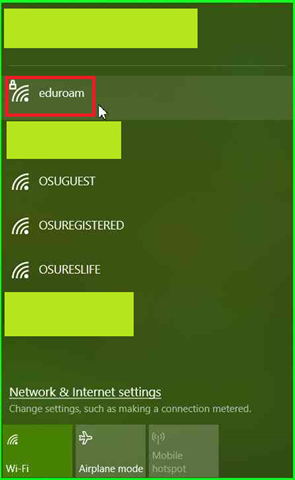
On the Taskbar (commonly located on the right), click “Internet access”.

Click on
eduroam
. Make sure that “Airplane mode” is off.
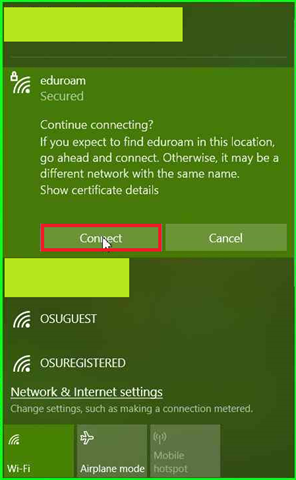
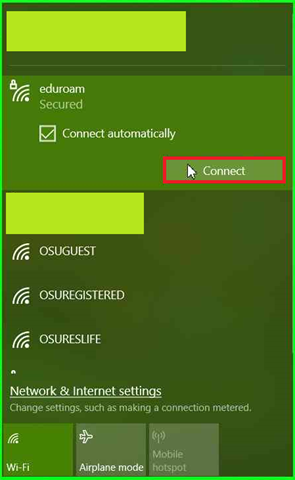
Click “Connect”. “Connect automatically” is optional.
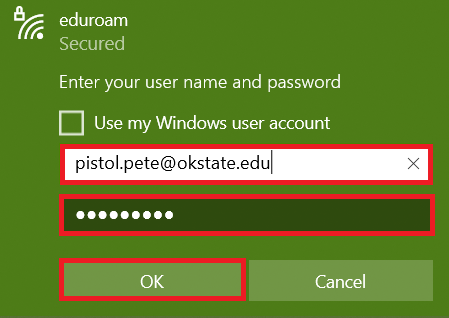
Enter your
O-Key email address
(not your short username). Enter your
O-Key password
. Click “OK”.
Click “Connect”.
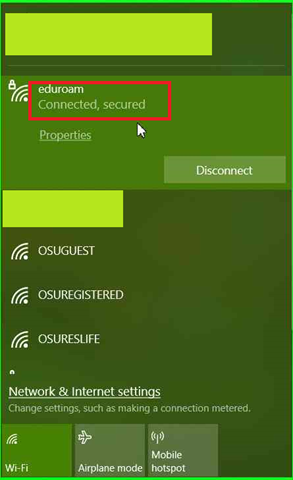
After a few minutes your device will say “Connected” to
eduroam
.
Issues
Windows 10
Remove Credentials
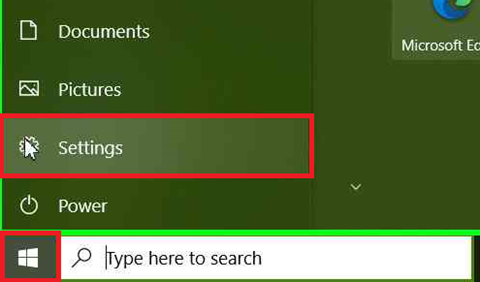
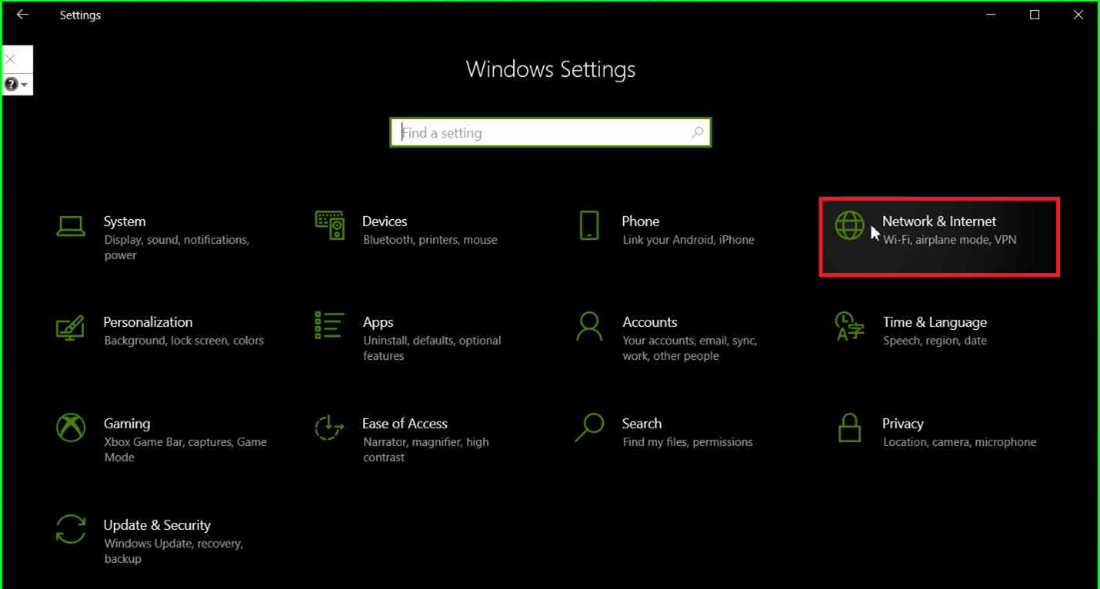
On the Taskbar (commonly located on the left), click on “Start”. Click on “Settings”.
Open “Network & Internet”.
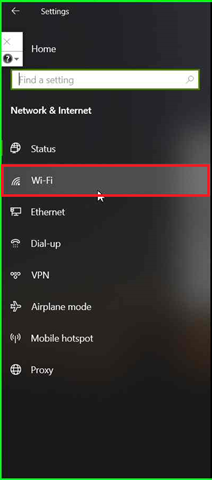
Open “Wi-Fi”.
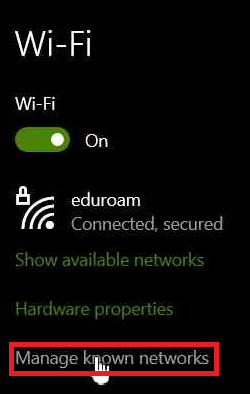
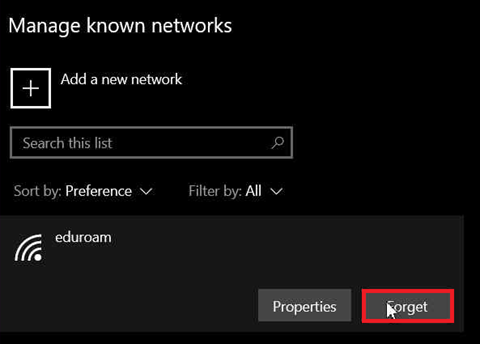
Click on “Manage known networks”.
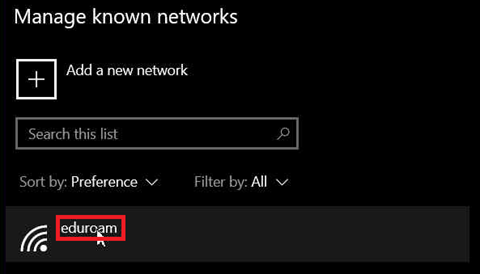
Click on
Click “Forget”. Your device no longer remembers
eduroam
. Attempt to connect to
eduroam
again with the above instructions.
Back To Top
©