

How do I bulk add or remove subscribers
Visit LISTSERV.okstate.edu.
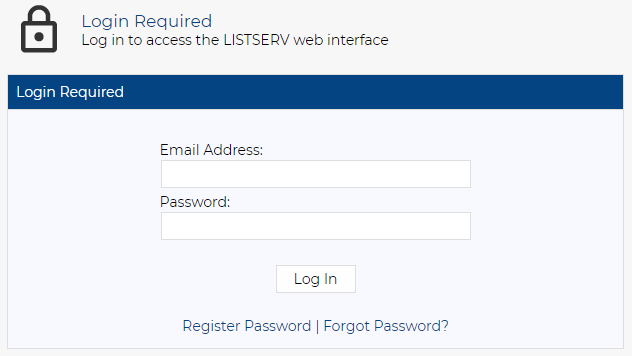
Sign in using the Log In button in the top right of the screen.
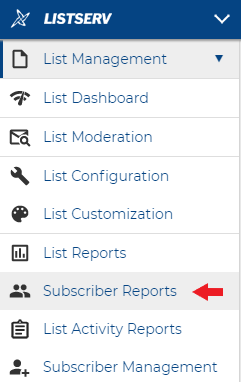
Once you’ve logged in, click List Management on the left to expand the menu and then click Subscriber Reports.
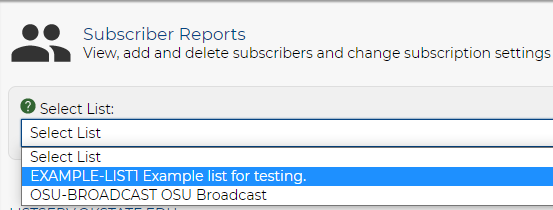
On the next page at the top, click the Select List drop down to see all lists you’re able to manage.
After selecting a list, click Bulk Operations next to the Add Subscriber header. In the pop-up window that appears, select the desired import option.
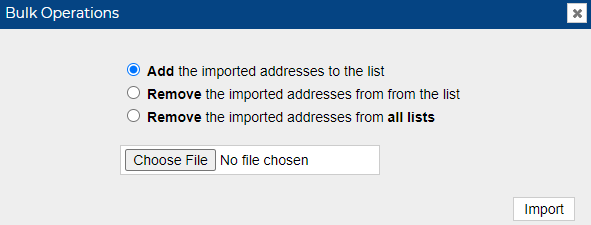
Once you’ve selected the desired import option, click Choose File, and select the desired plain text file from the dialog window that appears. Once the file is selected, click Open.Note: Enter each e-mail address on a separate line in the plain text file.
- Click Import to submit the plain text file. The addresses will either be added or removed, depending on the import option chosen. A message confirming the action will display at the top of the pop-up window.

Close the Bulk Operations pop-up window. The Subscriber Reports page will reload and the updated subscribers list will be displayed.