New Instruction Title
On your mobile device, go to the Google Play store and install the Microsoft Outlook app.
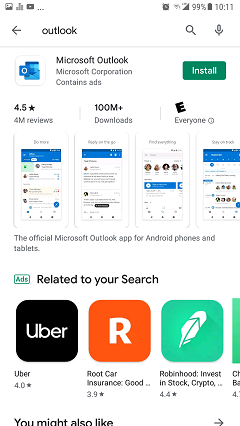
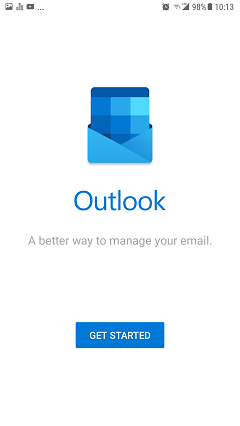
Once it is installed, open the app and click "Get Started."
The app may:
Detect you already have a Gmail account set up,
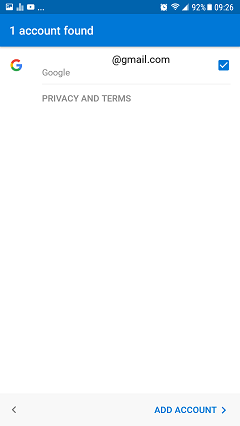
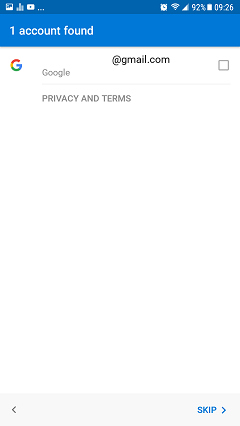
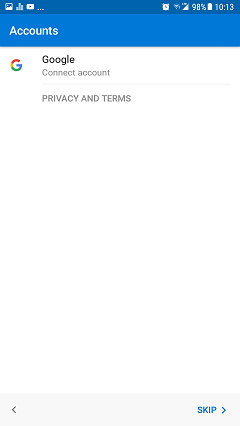
Or present the option to connect a Google account. Uncheck the Gmail account or otherwise select “Skip.”
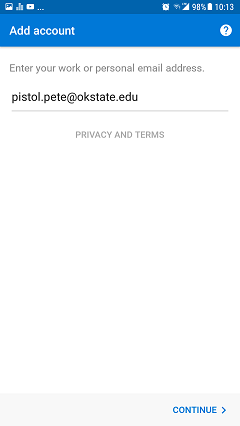
Type your @okstate.edu email address and tap “Continue”
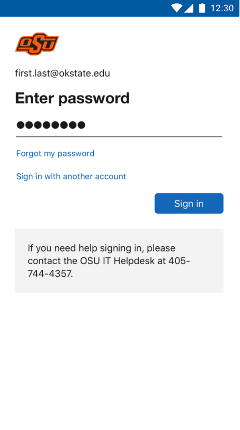
You will now be taken to a page showing the A&M System logos and with your email address already entered. Enter your O-Key Password here.
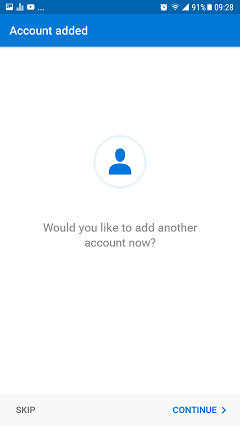
Your account is added. The App will ask if you’d like to add another account, at this time tap Skip. You may add other accounts later.
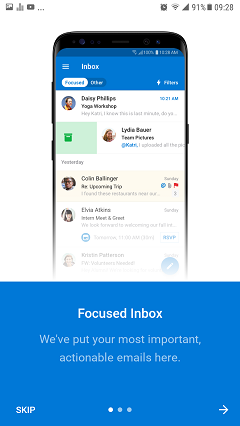
The next screen allows you to select the Focused Inbox by clicking the arrow, or you may tap Skip for the traditional inbox. This is a matter of personal preference, but the standard inbox is often easier to work with as it has a more traditional view.