

How Do I Restore Previous Versions Of My Files In OneDrive
Versioning is enabled for OneDrive. Versioning creates a record of all changes to files indicating the date/time of the change and the user that made the change. Previous versions of files can be restored through File Explorer or the OneDrive web client. Restoring a previous version will replace the current version.
Note: As a best practice, PST files should not be uploaded on OneDrive for Business or SharePoint Online team site document libraries due to the impact on storage. If PST files are uploaded, the service will only retain versions for 30 days.
Restoring A Previous Version Using File Explorer
Open File Explorer by clicking the folder icon on your task bar.

Navigate to the file in File Explorer.
Right click the file and select "Version History".
Click the ellipsis (...) next to the version you wish to restore and select Restore.
Restore A Previous Version Using A Web Browser
To access OneDrive via the web, go t http://cowboymail.okstate.edu and sign in with your O-Key credentials.
Once logged in, click the App Launcher in the top left and select "OneDrive".

Navigate to the file you wish to restore to a previous version.
When the mouse hovers over the file, a vertical ellipsis (...) should appear.
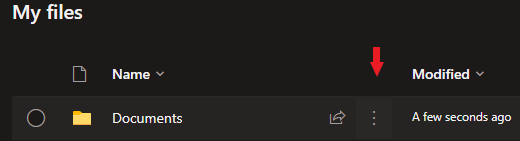
Click the ellipsis and select "Version History"
You can select "Restore" to restore an older version or select "Open File" to preview the old version.