

How to setup an Orange Mail account on the iPhone Mail App
Go to okey.okstate.edu and sign in.
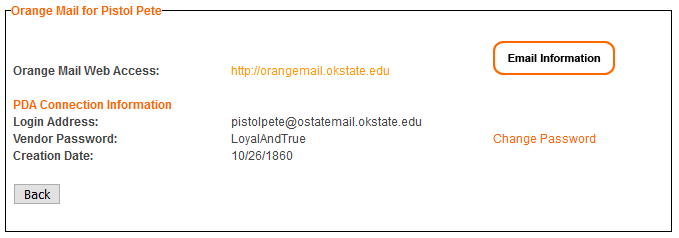
Click the Orange Mail link on the left side of the screen. Write down the Login Address.
Open the “Settings” application and scroll down to “Passwords & Accounts”
Select “Add Account” and then choose “Google”
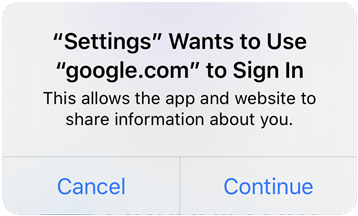
A prompt will appear asking if you’d like to use “google.com” to Sign In, select “Continue”
Enter the address from your O-Key page (Step 2), and select “Next”
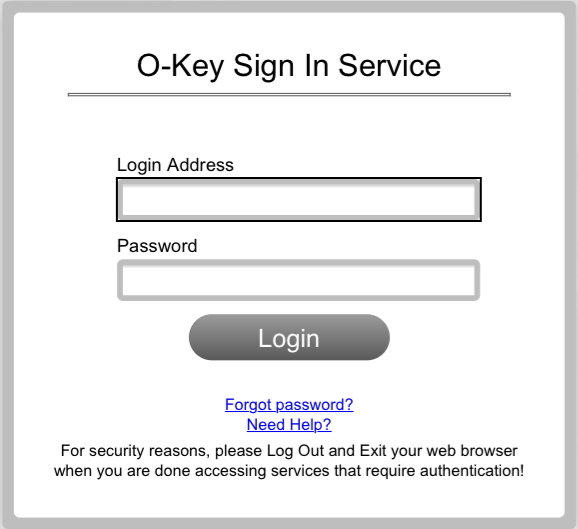
You will be redirected to the OSU webpage. Enter your O-Key credentials and select “Login”
Choose what apps you want to sync the account with, ensuring Mail is enabled. Select “Save”

Your account will now be added to your Mail application on your iPhone or iPad.