How do I add my Orange Mail account to Outlook ProPlus?
To connect an Orange Mail account to Outlook, you will first have to opt to “Allow less secure apps” and enable IMAP for your account.
In a web browser navigate to https://orangemail.okstate.edu
Enter your O-Key credentials to login to your Orange Mail account
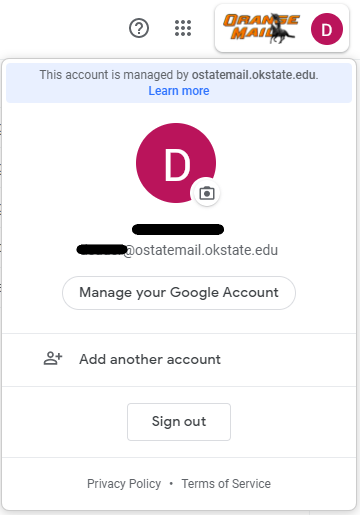
Click the Orange Mail account icon in the top-right corner and select “Manage your Google Account.”
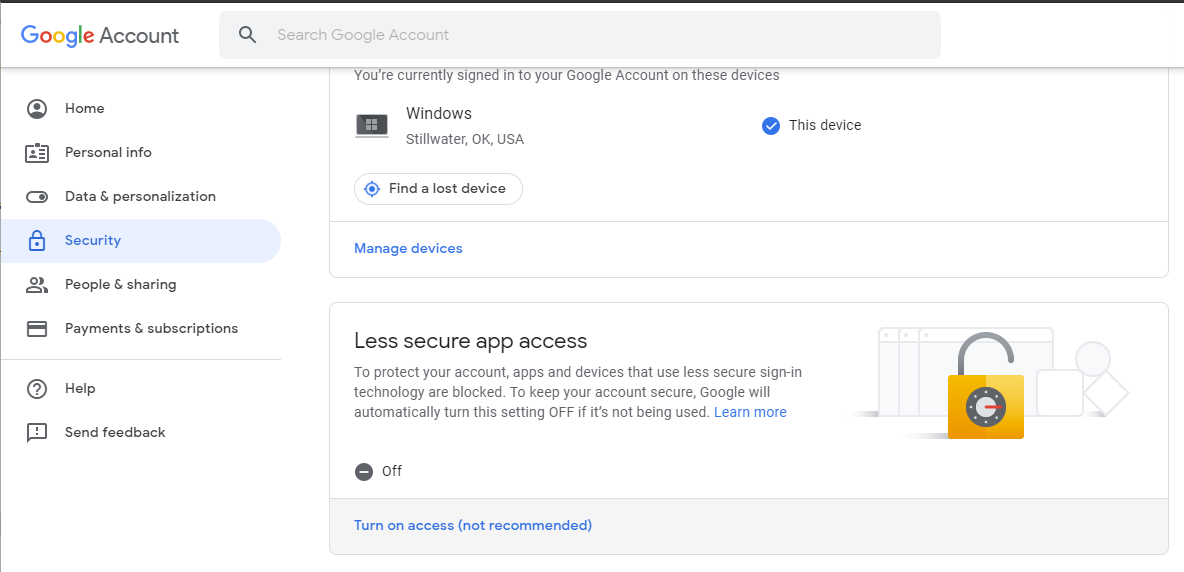
From the left pane select “Security”.
Locate the section “Less secure app access” and click on “Turn on access (not recommended)”
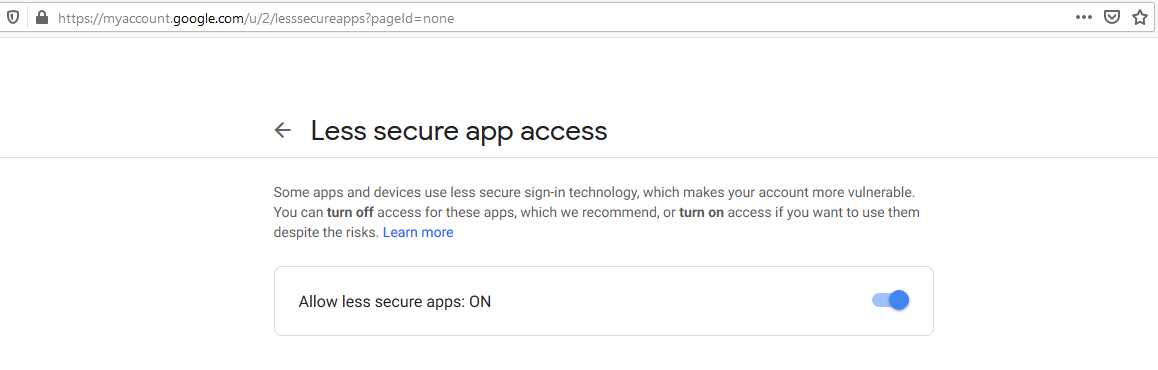
Toggle the switch labeled “Allow less secure apps:” to “ON”
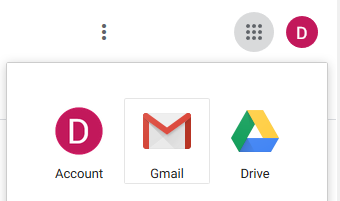
Navigate to your Orange Mail mailbox. You may use the “Google Apps” 9 dot grid icon and then select Gmail.
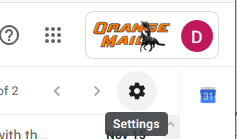
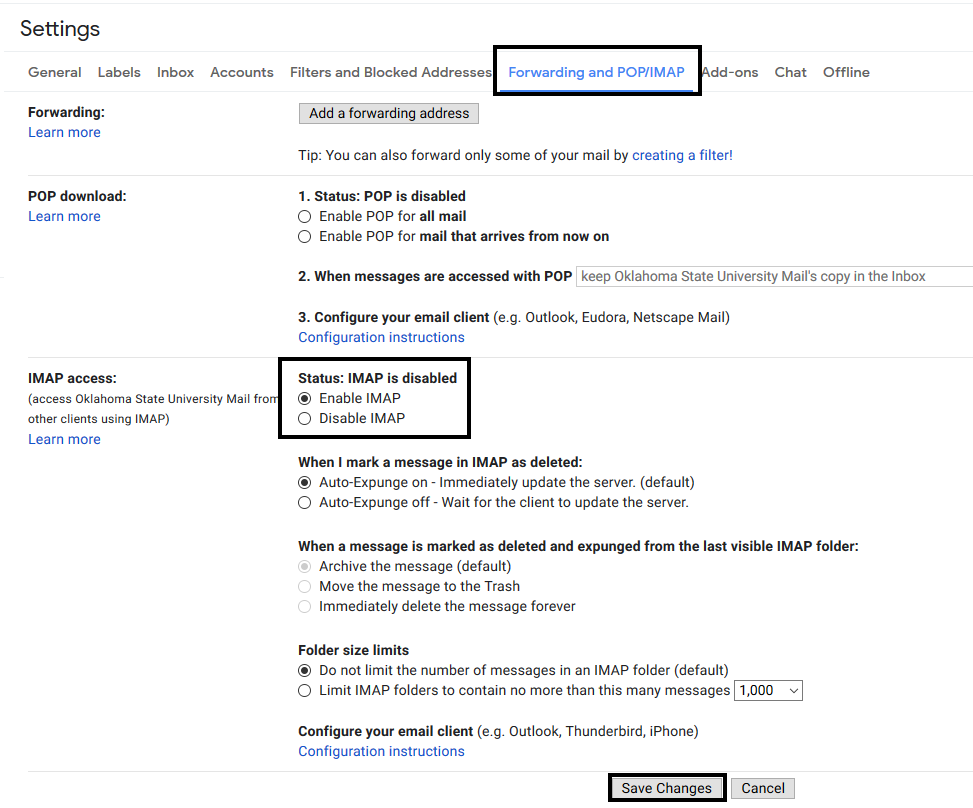
- Navigate to the “Forwarding and POP/IMAP”. Make sure the button by “Enable IMAP” is selected. Click the “Save Changes” button.
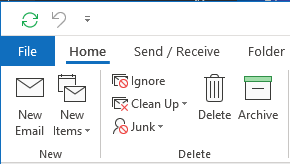
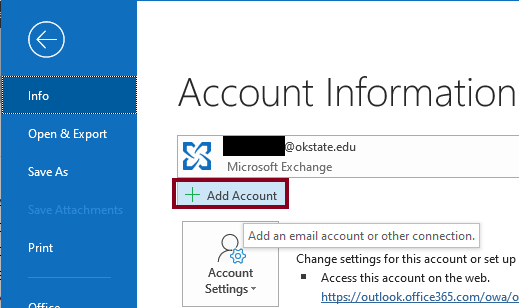
In Outlook, open the File menu by clicking “File” at the top left of the client.
Click the “Add Account” button.
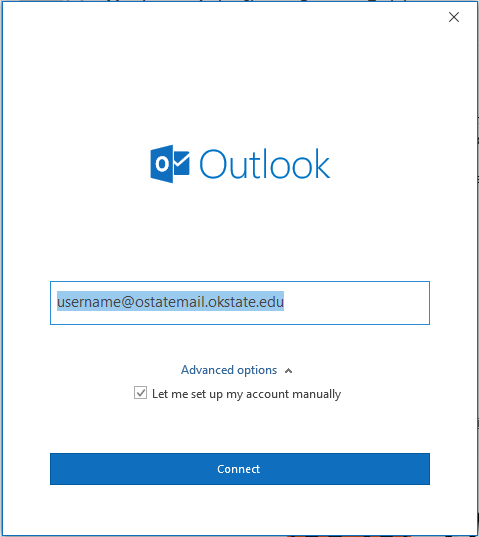
Add your @ostatemail.okstate.edu email address in the textbox. Click “Advanced Options” and check the box for “Let me set up my account manually”
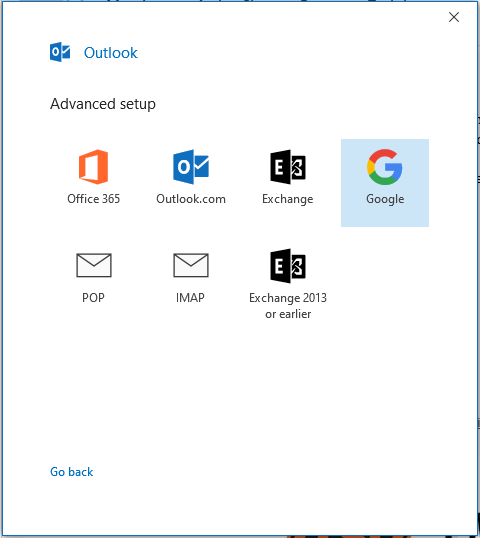
Click the icon for “Google”.
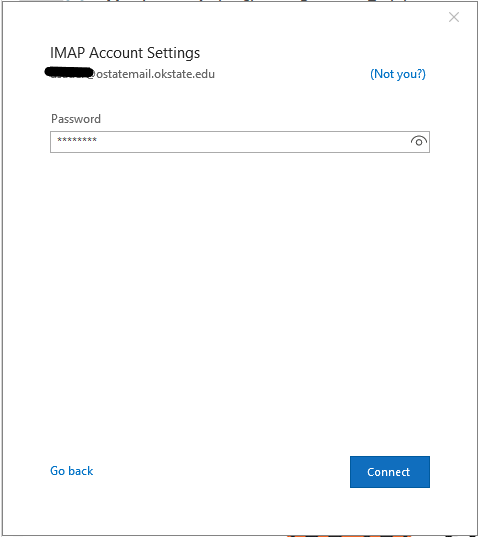
In the IMAP Account Setting window enter the following settings:
Incoming Mail
Server: imap.gmail.com
Port: 993
Encryption Method: SSL/TLS
Check “Require logon using SPA”Outgoing Mail
Server: smtp.gmail.com
Port: 587
Encryption Method: STARTTLS
Check “Require logon using SPA”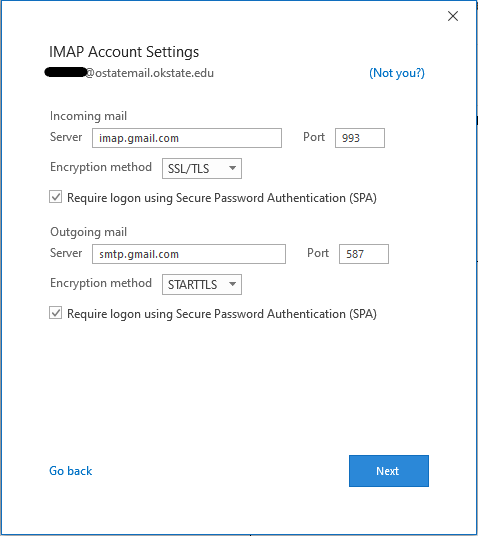
For the password you will need to use your Orange Mail Vendor password. Log in to http://okey.okstate.edu/. From your profile, click the “Orange Mail” link on the left side of the screen. Enter the Vendor Password from this screen into the Outlook password prompt.