

Remote Desktop using a Windows computer
To access a computer through Remote Desktop it has to be setup before anyone can connect. See OSU's Remote Desktop setup instructions
Basic Setup Instructions
- If you are not on OSU's network connect to the OSU VPN.
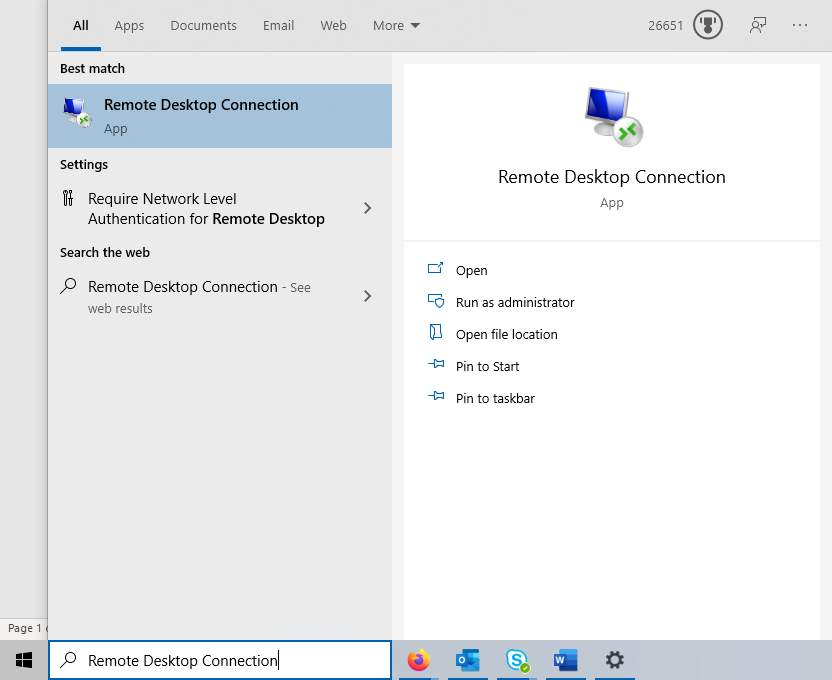
- Use the Windows Search bar and type Remote Desktop Connection. Click the App.
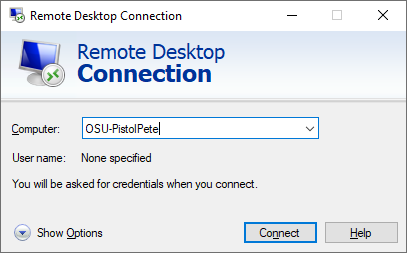
- When Remote Desktop Connection opens, enter your Office PC’s Host Name in the field for Computer and click Connect. If Host Name doesn’t work, use the IP Address you collected during setup.
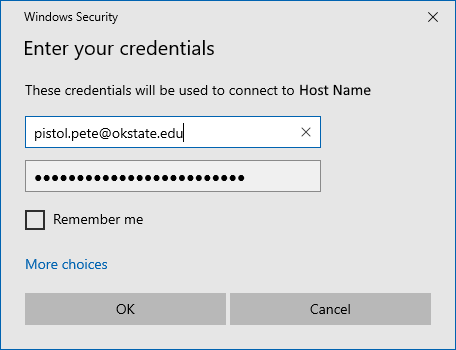
- You will be asked to enter your credentials to connect. This is the login information you use to sign into your account on your office PC.
- After clicking OK, you will be connected to your office PC.
- You can disconnect from the office PC by using the blue ribbon at the top of your screen, or via the windows "start" button.
Advanced Instructions for Granting Remote Desktop Access to Non-Admin Users
The computer administrator must log into computer
Right-click the start menu
Click “Computer Management”
Click “Local Users and Groups”
Double-click “Groups”
Double-click “Remote Desktop Users”
Click “Add…”
In the “Enter the object names to select:” box, type user short name or full @okstate.edu email address
Click “Check Names”
If user object was found, click “OK”
Click “OK”
Verify Remote Desktop is enabled
Log out of computer.