

How to Recover Deleted Emails in Outlook
Desktop Client
Recover Emails from Deleted Items
Go to the “Deleted Items” folder in your mailbox
Click the item you want to restore or select multiple items by holding “Ctrl” and clicking on the items.
After making the selections, click the “Move” button on the ribbon, and select “Other Folder…”
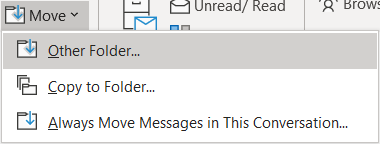
Scroll up to find your “Inbox.” Select it and click “OK.”
These items will now be moved to your Inbox.
Restore Deleted Items
Note: These items can only be recovered from the past 30 days.
Go to the “Deleted Items” folder in your mailbox
Click the “Recover items recently removed from this folder” button.
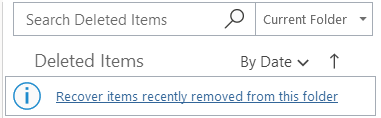
Click the item you want to restore or select multiple items by holding “Ctrl” and clicking on the items. To restore all items, click “Select All.”
After making the selections, click the “Restore Selected Items” option and click “Ok.”
These items will now be restored to your mailbox.
Web Client
Restore Deleted Items
Go to the “Deleted Items” folder in your mailbox
Click the item you want to restore or select multiple items by clicking the circle on the left side of the emails.
After making the selections, click the “Restore” button located at the top of the screen.

These items will now be restored to your mailbox.
Recover Emails from Deleted Items
Note: These items can only be recovered from the past 30 days.
Go to the “Deleted Items” folder in your mailbox
Click the “Recover items deleted from this folder” button.
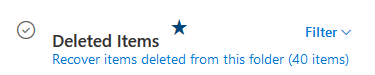
Click the item you want to restore or select multiple items by clicking the circle on the left side of the emails.
After making the selections, click the “Restore” button located at the top of the screen.
These items will now be restored to your mailbox