

Setup instructions for Thunderbird
Thunderbird can be used on Windows or Linux. The directions shown are for a Thunderbird client on Linux. The Owl Add-on allows translation of email traffic to Exchange ports and doesn’t use IMAP or POP.
OSU has purchased Owl licenses for use with Thunderbird for all @okstate.edu email addresses. In step 9 when you use your @okstate.edu email address you will be automatically licensed.
In Thunderbird, click the settings icon (three horizontal bars) and then go to Add-ons.

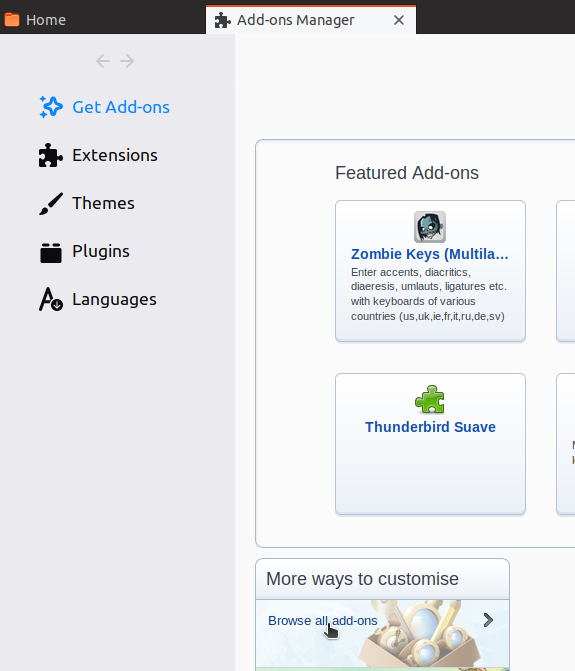
In the Add-ons manager, click “Browse all add-ons” button. You may have to scroll down to see the button.
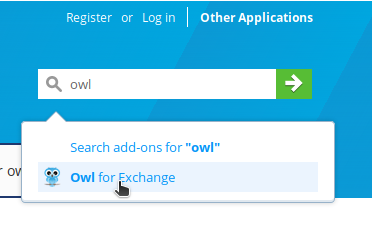
In the search bar type “Owl” and the select “Owl for Exchange.”
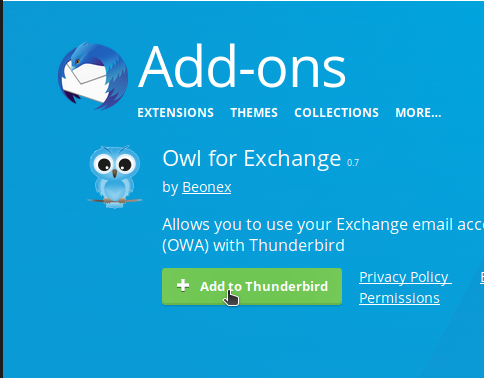
Click “Add to Thunderbird”
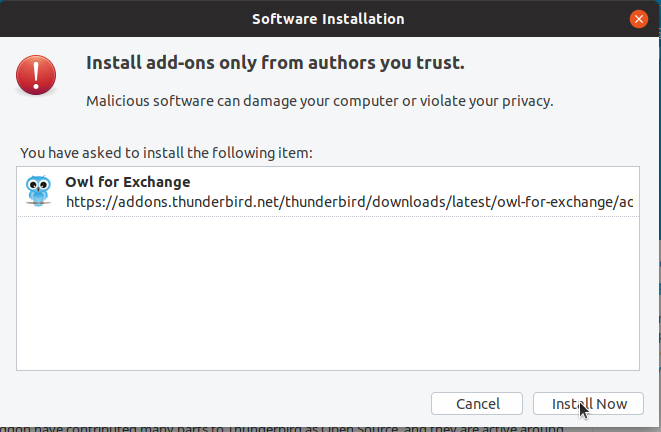
You may get a prompt about Trusted Add-ons. Click “Install Now”
You should get a prompt when the Add-on is installed. Click “Open Add-ons Manager.”

Click “Preferences” for the Owl Add-On.

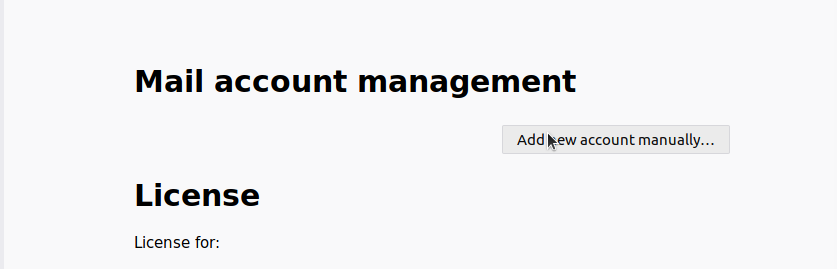
Scroll down until you see Mail Account Management. Click “Add New account manually”
Use your @okstate.edu email address for both email address and username.
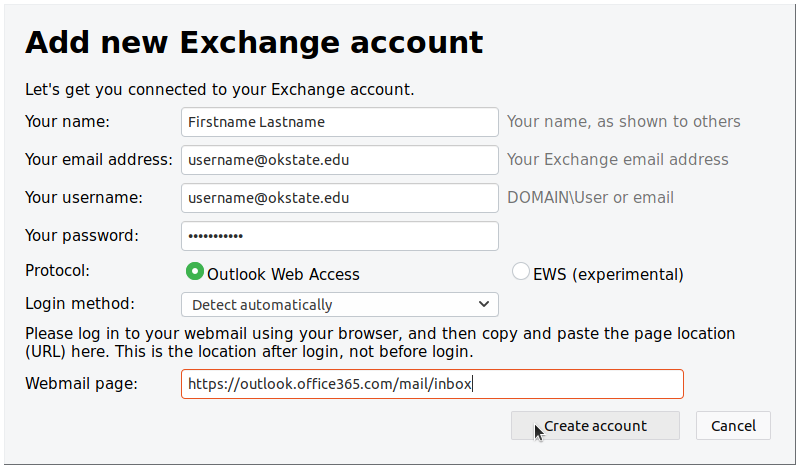
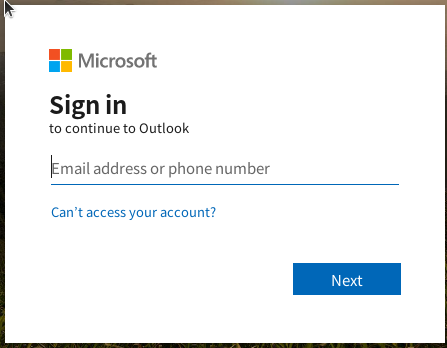
Enter https://outlook.office.com/mail/inbox for the webmail page. Sign in again when the web portal pops up.
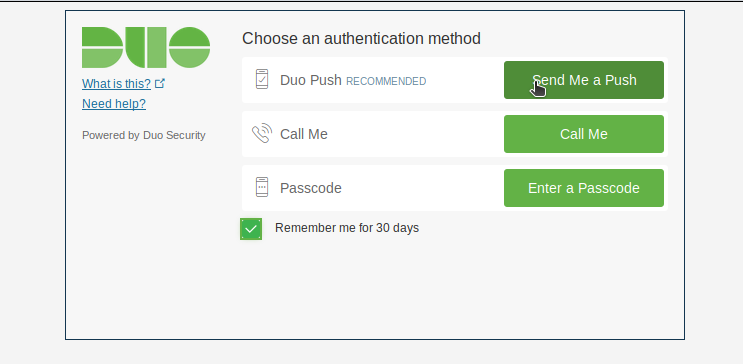
If you use Duo, you will then be prompted with MFA verification.
Your account should now be added to Thunderbird. Click the “Inbox” tab to be taken to your mailbox.
